
If files inside your landing page’s admin/db_action folder are being automatically deleted by your hosting provider, your admin panel will stop working or display errors when saving settings. This is a known issue on hosting providers that run ImunifyAV or Imunify360 server-side security software — most commonly reported on Namecheap shared hosting.
Why This Happens
The files inside the db_action folder contain PHP obfuscated code — meaning the source code has been intentionally encoded so it cannot be read or modified by a human. Security scanners like ImunifyAV flag obfuscated code as potentially malicious because malware often uses the same technique to hide itself. The scanner then quarantines or deletes the flagged files without warning.
Why We Use Obfuscated Code
Our landing pages include a licensing system that verifies your license key each time you save settings through the admin panel. The license verification logic is embedded inside the db_action files. We obfuscate this code to prevent it from being easily read, modified, or stripped out — which would bypass the licensing system entirely and allow unauthorized use of the product.
The obfuscated code does nothing harmful. It handles the same license verification that runs when you first activate your license key — checking that your key is valid and that your domain is authorized. It contains no backdoors, no external data collection, and no code that modifies anything outside your landing page directory.
How to Fix It
Step 1: Re-upload the missing files
- Download the latest version of your landing page from your customer profile.
- Extract the .zip archive on your local machine.
- Connect to your server via File Manager or an FTP client.
- Navigate to your landing page directory and open the admin folder.
- Upload the db_action folder from the extracted archive, overwriting any remaining files.
- Verify your admin panel is working again by logging in and saving a setting.
If you are not sure how to upload files to your server, refer to our guide on uploading landing page files.
Step 2: Add the db_action folder to ImunifyAV ignore list
After re-uploading the files, you need to tell ImunifyAV to stop scanning the db_action folder. Otherwise, the files will be deleted again on the next scan.
- Log in to your cPanel dashboard.
-
Navigate to Security > ImunifyAV (or Imunify360).

-
Open the Ignore List tab.
-
Click Add new entry to ignore list.
-
Enter the full path to the db_action folder. The path typically follows this format:
Replace your-cpanel-username with your actual cPanel username and your-landing-page-folder with the name of the directory where your landing page is uploaded. If you uploaded the landing page directly into the root directory, omit the folder name and use /home/your-cpanel-username/public_html/admin/db_action/ instead./home/your-cpanel-username/public_html/your-landing-page-folder/admin/db_action/ /home/your-cpanel-username/public_html/your-landing-page-folder/admin/db_action/* - Save the changes.


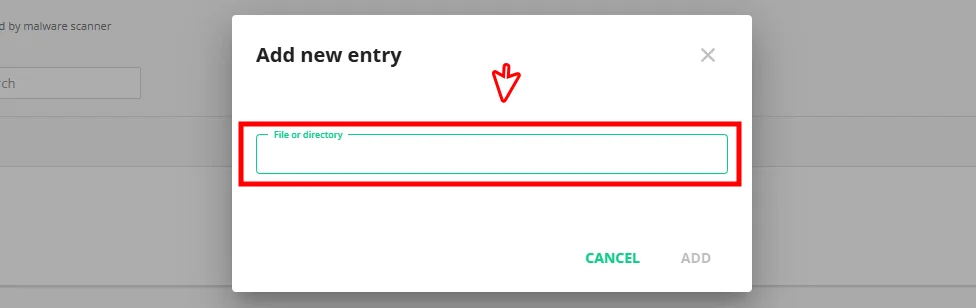
Once the folder is added to the ignore list, ImunifyAV will skip it during future scans and your files will no longer be deleted.
CouponRocket Landing Page
If you are using the CouponRocket landing page, the file structure is different. CouponRocket does not use an admin/db_action folder — instead, the obfuscated files are spread across the app folder which contains the application’s core logic, controllers, and helpers.
For CouponRocket, add the following paths to the ImunifyAV ignore list instead:
/home/your-cpanel-username/public_html/your-landing-page-folder/app/
/home/your-cpanel-username/public_html/your-landing-page-folder/app/*
Replace your-cpanel-username and your-landing-page-folder with your actual values, same as described above. If the files were already deleted, re-upload the entire app folder from a fresh download before adding the exception.
If You Cannot Access ImunifyAV
Some hosting providers do not expose the ImunifyAV interface in cPanel. If you do not see an ImunifyAV or Imunify360 option in your control panel, contact your hosting provider’s support team and ask them to:
- Whitelist or exclude the db_action folder inside your landing page’s admin directory from their server-side malware scanner.
- Confirm that the folder will not be flagged or cleaned on future scans.
Let them know the folder contains intentionally obfuscated PHP code used for software license verification and is not malicious.
Other Hosting Providers
While this issue is most common on Namecheap, any hosting provider that runs automated malware scanning could potentially flag and remove the obfuscated files. If you experience the same problem on a different host, the solution is the same — re-upload the missing files and add the db_action folder to your security scanner’s exception list. Contact your hosting provider if you need help locating the correct settings.
If the issue persists after whitelisting the folder, contact support and include your hosting provider name and a screenshot of any error messages you are seeing.
Related Articles
Need more help?
If this article didn't answer your question, submit a support ticket.
Log In to Submit a Ticket